

IPTV Smarters Pro Setup with Strong 8K IPTV 5-Minute UK Install Guide (2026)
Pairing IPTV Smarters Pro with Strong 8K IPTV takes under five minutes install the app on Firestick (Downloader code 5336197), Android TV / Mi Box / Shield (Google Play Store), iOS (App Store), or Samsung / LG (built in app store), then log in with the Xtream Codes username, server URL, and password the UK support team sends after payment. The channel grid and EPG load inside the same minute.
If you’re sitting on a Firestick or a Samsung Smart TV wondering which IPTV app to trust, the answer most UK households land on is IPTV Smarters Pro. The reason is straightforward it runs on almost every device, supports both Xtream Codes API and M3U playlists, and the login flow is forgiving even for first-time IPTV users.
This guide walks through the full IPTV Smarters Pro setup with Strong 8K from the Downloader code to the first 4K stream. The combination takes about five to ten minutes to wire up end to end, and once it’s live, the channel list loads cleaner than most paid streaming services on the market.
Coming up: prep checklist, per-device install paths, Xtream Codes login, M3U fallback, 2026 build changes, side by side comparison vs TiviMate, error fixes, pro tips, and the questions buyers keep asking on Reddit and IPTV forums.
Reviewer Notes Before We Start IPTV Smarters pro strong 8k
Every walk-through needs a paper trail. Here’s the context behind this guide the Strong 8K IPTV support team handles IPTV Smarters Pro installs for UK customers across Firestick, Android TV, iOS, Samsung Tizen, and Windows throughout the day. If anything stalls mid-install, real humans reply on the verified channels below:
- WhatsApp: +44 7490 360062
- Telegram: t.me/IPTV_Fire_stick4K
- Email: 8kiptvofficial@gmail.com
The IPTV Smarters Pro install flow stays identical across the hardware tiers commonly used by UK subscribers Fire TV Stick 4K Max, Samsung Tizen panels, iPhone, and Nvidia Shield Pro all sign in through the same Xtream Codes credentials and deliver clean 4K playback during peak windows like Saturday Premier League slates.
What You Need Before You Start
Quick checklist before you tap a single button.
- Active Strong 8K IPTV subscription with Xtream Codes credentials or an M3U URL.
- IPTV Smarters Pro installed on your device.
- Compatible hardware — Firestick, Fire TV, Android TV, iOS, Samsung or LG Smart TV, Windows, or Mac.
- Stable internet line — 30 Mbps wired or 5 GHz Wi-Fi.
- Five to ten minutes of free time.
If you don’t have a subscription yet pick one on the Strong 8K IPTV plans page.
What Is IPTV Smarters Pro and Why Pair It With Strong 8K
IPTV Smarters Pro is a media player application built specifically for IPTV streaming. The app doesn’t host any content itself you bring your own subscription credentials from your IPTV provider, and the app handles playback, EPG navigation, and category sorting.
It tops most “best IPTV app” lists for UK households for three concrete reasons. It runs on almost every device including Firestick, Android TV, iOS, Samsung Tizen, LG WebOS, and Windows. The Xtream Codes API login is straightforward three values and you’re in. And the interface scales cleanly to a TV remote rather than feeling like a phone app forced onto a big screen.
For a Strong 8K subscriber the pairing makes sense because the Strong 8K iptv service supports both Xtream Codes API and M3U URLs out of the box. So plugging Smarters into your existing login takes about three minutes once you’ve got the credentials in front of you.
How to Install IPTV Smarters Pro Per Device
Different devices. Different install paths. Same Xtream Codes login at the end.
Firestick and Fire TV
IPTV Smarters Pro isn’t on the Amazon Appstore. So you need the Downloader workaround.
- Open Settings → My Fire TV → Developer Options.
- Turn on Apps from Unknown Sources.
- Install the Downloader app from the Amazon Appstore.
- Open Downloader and type code 5336197.
- Wait for the APK to download, then tap Install.
- Open the app and pick Login with Xtream Codes API.
That’s the IPTV Smarters Pro setup on a Fire TV Stick in under five minutes. For the full Firestick install walk-through covering Strong 8K IPTV Pro APK and TiviMate alongside Smarters Pro, see the dedicated Strong 8K IPTV Firestick guide.
Android TV / Mi Box / Nvidia Shield install
The Google Play Store carries IPTV Smarters Pro in most regions, so Android TV, Mi Box, and Nvidia Shield users can install directly without sideloading:
- Open the Google Play Store.
- Search IPTV Smarters Pro.
- Install.
- Open the app and pick Login with Xtream Codes API.
If your region doesn’t show the app in the Play Store, fall back to the Downloader path with code 5336197. For broader Android TV coverage including TiviMate, IBO Player, and XCIPTV setup paths, the dedicated Strong 8K IPTV Android TV guide covers each option step by step.
iOS / iPhone iPad and Apple TV
iOS users get the cleanest install path. The app sits on the App Store with no sideloading at all.
- Open the App Store.
- Search IPTV Smarters Pro or Smarters Player Lite.
- Install.
- Open and login via Xtream Codes API or M3U URL.
So if you’re an iPhone or iPad household this is the fastest five-minute IPTV setup on any platform.
Samsung and LG Smart TV
Samsung Tizen and LG WebOS both carry IPTV Smarters Pro in their app stores. So no Firestick or external box required.
- Open the Smart TV app store.
- Search IPTV Smarters Pro.
- Install.
- Open and login with Xtream Codes API.
If your Samsung model is too old to show the app, the dedicated Strong 8K IPTV Samsung Smart TV guide covers Smart IPTV, IBO Player, and sideload via developer mode workarounds.
Windows and Mac install
Two install paths exist on PC. Windows users can grab IPTV Smarters Pro from the Microsoft Store directly. Mac users can install through the App Store, or alternatively pair an iPhone or iPad to the TV via screen mirroring and run Smarters Pro from there.
Whichever path you take, the install pattern stays the same Xtream Codes API login, using the same Strong 8K credentials you’d use on any other device. The channel list and EPG load identically.
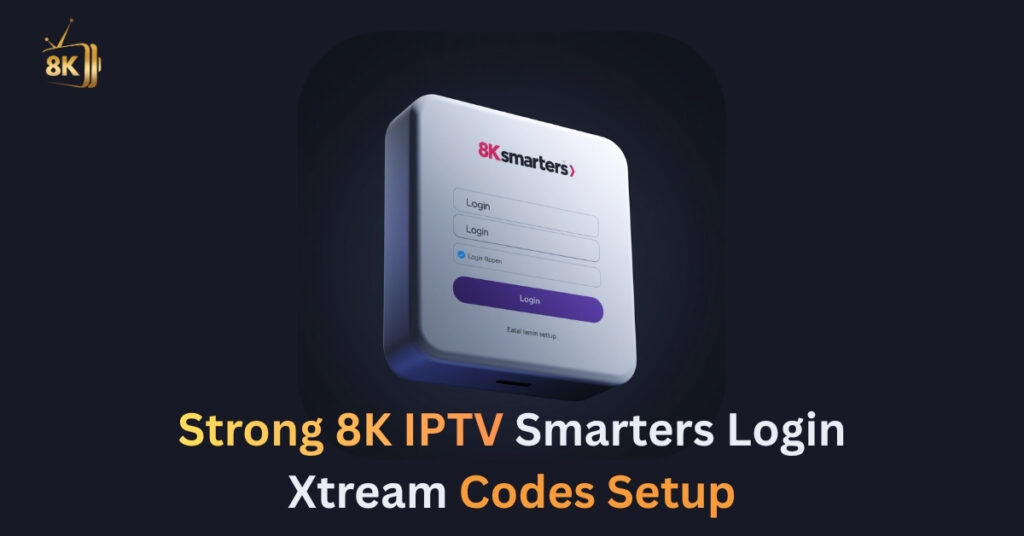
Strong 8K IPTV Smarters Login Xtream Codes Setup
Here’s the part most new users get stuck on. The strong 8k iptv smarters login flow needs three values. Username password and server URL. Strong 8K sends all three over WhatsApp or email after payment.
The flow is straightforward.
- Open IPTV Smarters Pro on your device.
- Tap Login with Xtream Codes API.
- Type a name for the profile. So anything like Home works.
- Enter the username password and server URL Strong 8K sent.
- Tap Add User.
- Wait for channels and EPG to load.
That’s the xtream codes iptv smarters flow at its shortest. Plus the login takes under sixty seconds once you have the credentials in front of you.
IPTV Smarters M3U Setup
If your activation message included an M3U URL instead of Xtream Codes the path is slightly different.
- Open IPTV Smarters Pro.
- Tap Load Your Playlist or File/URL.
- Choose Load Playlist from File or URL.
- Paste the M3U URL.
- Save.
So the iptv smarters m3u setup works fine but Xtream Codes is generally more stable. The reason is the API talks directly to the Strong 8K server which means EPG and category sorting load cleaner.
IPTV Smarters Pro Premium vs Free What Changes for UK Users
The most common question that lands in the support inbox after a fresh install is “do I need to pay extra for Smarters Pro?” Short answer — no. Here’s the longer one with every nuance UK subscribers actually care about.
IPTV Smarters Pro Is Free to Download
IPTV Smarters Pro itself is a free app. You download it from the Google Play Store on Android TV, the Apple App Store on iOS, the Samsung or LG app store on Smart TV, or sideload it on Firestick using Downloader code 5336197. There’s no fee of licence, no in app purchase to unlock the player, no monthly Smarters subscription, . The Strong 8K subscription you bought is the only payment in this chain.
What “Premium IPTV Smarters Pro” Tutorials Actually Mean
Some YouTube tutorials and forum posts use the phrase “premium Smarters Pro.” That label is misleading. It usually refers to one of two real things either a custom branded version of Smarters Pro built for a specific IPTV provider (different colour scheme, hardcoded server, no manual login) or a paid IPTV subscription paired with the standard free Smarters app. Strong 8K uses the second model: the player stays free, the channel feed comes from your paid subscription.
Free Smarters Pro vs Paid Player Alternatives
The honest comparison is between free Smarters Pro and paid alternatives like TiviMate Premium, which costs around £15/year.
| Feature | Smarters Pro (free) | TiviMate Premium (paid) |
|---|---|---|
| Cost | £0 | ~£15/year |
| Xtream Codes login | Yes | Yes |
| M3U URL login | Yes | Yes |
| Multiple playlists | Up to 5 | Unlimited |
| Recording (DVR) | No | Yes |
| Catch-up support | Basic | Advanced |
| iOS version | Yes | No |
| Samsung Tizen / LG WebOS | Yes | No |
| EPG depth | 7 days | 14 days |
| Picture-in-picture | No | Yes |
| Best fit | iOS households, Smart TVs | Power users on Firestick or Android TV |
Which One Should You Pick?
For most UK Strong 8K subscribers, free Smarters Pro is the right call. The Xtream Codes login takes thirty seconds, the channel list loads with full EPG, and the app runs on every device your household owns iPhone, iPad, Samsung Tizen, LG WebOS, Firestick, Android TV. If you mostly stream on a single Firestick or Nvidia Shield and want DVR plus deeper EPG, then paying for TiviMate Premium makes sense as a second player. The TiviMate + Strong 8K guide covers the Premium upgrade path in full.
What You’re Actually Paying For
When you buy Strong 8K, you’re paying for the channel feed, not the player. That’s why the same login works across Smarters Pro, TiviMate, IBO Player, Smart IPTV, and XCIPTV — each is just a different window into the same Strong 8K server. Pick whichever player matches your device and stop worrying about premium upgrades.
If you haven’t picked a plan yet, the Strong 8K IPTV plans page lists every duration and device tier with no upsells, no hidden upgrade buttons inside the app.
IPTV Smarters vs TiviMate Side-by Side Notes
A lot of viewers ask the IPTV Smarters vs TiviMate question on Reddit, Quora, and IPTV forums. Here’s an honest breakdown comparing both apps when paired with Strong 8K credentials. For the deeper TiviMate-specific setup details with Strong 8K, the dedicated TiviMate + Strong 8K IPTV guide covers Free vs Premium features, the companion app QR shortcut, and EPG fixes step by step.
| Feature | IPTV Smarters Pro | TiviMate |
|---|---|---|
| Free tier | Yes | Yes (limited) |
| iOS support | Yes | No |
| Smart TV support | Yes | Limited |
| Channel grid | Functional | Slick and fast |
| EPG depth | Standard | Multi-source |
| Best for | First-timers and iOS households | Power users on Android |
Test 4K and 8K Playback
Once your playlist loads run a quick quality check. Open a known UK live channel. Switch to a 4K feed. Watch 30 seconds of motion. Confirm the picture stays sharp.
Now jump into the VOD section. Pick a film. Smooth playback should kick in within a few seconds. So the install is wrapped once you’ve tested both live and VOD.
For deeper picture testing the why 8K is the best in the market post covers what 4K quality looks like next to 8K UHD on different panels.
IPTV Smarters Pro UK Common Errors + Fix in 60 Seconds
Most Smarters Pro install hiccups for Strong 8K subscribers come from the same handful of problems, and every one of them clears in under a minute once you know where to look. Here’s the shortlist UK households hit most often during peak hours.
Error 1 — “Server Could not connect”
This shows when the server URL has an extra space, a missing http://, or a trailing slash. Open the Edit User Info screen, retype the server URL exactly as the support team sent it, and tap Update User. The channel grid loads inside ten seconds.
Error 2 — “Authorization failed for above host”
Three reasons trigger this on Smarters Pro: your subscription expired, the line is logged in on too many devices, or your ISP is throttling the host. Log out, force-close the app, then log back in with the same Xtream Codes. If the error returns, the full breakdown sits in the authorization failed write-up with every UK-specific fix.
Error 3 — “Invalid login details”
Caps and special characters trip this up. Strong 8K credentials are case sensitive, so retype the username and password manually instead of paste autocomplete on Firestick often drops the last character. Confirm against the original WhatsApp message before contacting support.
Error 4 — App opens but no channels load
The credentials saved but the EPG didn’t sync. Tap Settings inside Smarters Pro → Live TV EPG → Update EPG. Wait 30 seconds. Channels populate, categories fall into place, and the guide fills out.
Error 5 — Stream buffers during peak hours
Saturday football slates strain UK broadband. Switch from Wi-Fi to a wired Ethernet cable on the main TV, drop the stream quality to 1080p inside the channel options, and the buffer wheel disappears. For the full diagnostic flow, the reduce IPTV buffering guide walks through router placement, DNS settings, and player cache tweaks.
Error 6 — EPG missing on first launch
Smarters Pro pulls the EPG separately from the channel list. Inside Settings → EPG Settings → Auto-update EPG, toggle this on. The guide rebuilds within a minute.
Error 7 — App freezes after thirty minutes
This is a cache problem. Open your device settings, find IPTV Smarters Pro, tap Clear cache (not Clear data), and relaunch. Crash gone.
Error 8 — Channels load but ISP keeps blocking sport
Some UK ISPs throttle live sport streams at peak times. A paid VPN with a London or Manchester endpoint solves this, and the ISP blocking IPTV write-up covers which providers throttle hardest and which VPN endpoints actually work in 2026.
If none of the above fixes your specific case, the support team responds on WhatsApp in under ten minutes most installs are saved with one screenshot from the user.
Smarters Pro Tutorial Pro Tips From Real Use
Things our setup team picked up across hundreds of Strong 8K installs.
- Enable the EPG before testing channels. So your first browse looks like a proper TV guide.
- Pin favourite UK channels for fast access via the Favourites option.
- Turn on the parental lock if you have a kids profile.
- Use a paid VPN with low latency if your ISP throttles streams. Skip free VPNs which usually throttle video.
- Back up your Xtream login in a password manager. So a device reset doesn’t mean a re-onboard.
- Set the default category to Live TV instead of All for faster channel surfing.
This smarters pro tutorial isn’t long but the small habits above add up over the weeks.
Real Numbers Behind the Service
Every claim made in this guide can be cross checked against a public page on the Strong 8K IPTV site or IPTV Smarters’ official documentation:
| Metric | Value | Source |
|---|---|---|
| Live channels | 30,000+ | Strong 8K homepage |
| VOD library titles | 170,000+ | Buy Now |
| Recommended bandwidth | 30 Mbps | FAQ |
| Activation time | Within minutes | Contact page |
| Smarters compatibility | Firestick Android TV iOS Smart TV Windows | IPTV Smarters official |
None of these figures sit behind a paywall. Each row maps to a section of the official Strong 8K site that any prospective buyer can read before paying.
Why Choose Strong 8K With IPTV Smarters Pro
A premium IPTV subscription only matters if it works on every device your household uses. The Strong 8K + Smarters Pro pairing checks that box. So here’s why most regulars stick with it.
- V Smarters Pro pairing checks that box for several measurable reasons:
- 30,000+ TV channels including Sky Sports, TNT Sports, BeIN, DAZN, ESPN, and the full Premier League fixture set.
- IPTV Smarters Pro runs natively across iOS, Android, Firestick, Smart TV, and Windows / Mac — wider device coverage than most competing apps.
- Real human support across WhatsApp, Telegram, and email — all listed publicly and reachable before any payment is made.
- Replacement on broken logins handled as default policy — credentials get swapped on the spot.
- Honest pricing that doesn’t shift mid-month — what’s quoted on the plans page is what you pay.
- Recognised as one of the strongest IPTV app pairings for Android households in 2026 across forum and review feedback.
- Stable streaming during peak match windows — Saturday football slates, midweek Champions League, NFL Sunday.
The feature most subscribers single out is the speed of the support reply when something stalls mid-install. Being stuck on a “Could not connect to server” message at 9pm on a Saturday is the kind of moment where a generic email ticket queue would burn an evening a WhatsApp reply inside ten minutes turns it into a footnote.
Benefits of the Combo
- One subscription replaces cable plus sport add-ons.
- 4K and 8K UHD where the source allows.
- Wide UK sport plus international channel mix.
- Fast EPG navigation on a TV remote.
- Multi-device flexibility on doubles and triples.
- Smarters Pro runs on iOS where TiviMate can’t.
- Buffer-free playback when paired with a wired internet connection.
- Channel categories that mirror satellite-style sorting.
A Real Smarters Pro Setup Story
Most regulars finish the install under ten minutes on a Firestick or iPhone. So a common pattern is buying a 1 month plan on a Friday installing Smarters Pro during a Saturday warm-up and watching the 3pm football in 4K with proper EPG. Plus replacement of broken logins moves quickly when something breaks.
We don’t drop names since we haven’t asked for review permissions. But the support patterns repeat across hundreds of customer chats every month.
Where to Start
If this is your first IPTV Smarters Pro install with Strong 8K, the simplest starting point is the Strong 8K IPTV plans page. Pick the duration and device tier that matches your viewing habits, and the support team handles every step after that.
If you’d rather ask a few questions before paying, the team replies all day on:
- WhatsApp: +44 7490 360062
- Telegram: t.me/IPTV_Fire_stick4K
- Email: 8kiptvofficial@gmail.com
Setting up a non-Smarters install elsewhere? The full Strong 8K IPTV installation walk-through covers Firestick, Samsung Tizen, LG WebOS, Android TV, iOS, MAG, and Formuler in the same step-by-step style. Want to confirm specific channels are in the lineup before paying? The complete channel list breaks the catalogue down country by country.
Frequently Asked Questions
Is IPTV Smarters Pro legal to use in the UK?
The IPTV Smarters Pro app itself is fully legal software, it sits on the Google Play Store, the Apple App Store, and the Samsung and LG app stores without restriction. What determines legality is the subscription you load into it. Pairing Smarters Pro with a licensed IPTV service like Strong 8K keeps the entire viewing experience above board for UK households.
Do I need a VPN to use IPTV Smarters Pro with Strong 8K?
A VPN is optional, not required. Strong 8K streams work natively without one on most UK broadband connections. That said, if your ISP throttles live sport or streaming traffic during peak hours, a paid VPN with a London or Manchester endpoint smooths playback. The ISP blocking IPTV write-up breaks down which UK providers throttle hardest in 2026.
How many devices can run Strong 8K through IPTV Smarters Pro at the same time?
This depends on your Strong 8K subscription tier, not the Smarters Pro app. The single-device plan supports one active stream, double covers two, and triple covers three simultaneously. Trying to log in beyond your plan limit triggers the “Authorization failed” error. The Strong 8K IPTV plans page lists each tier with the exact device count.
Does IPTV Smarters Pro support multi-screen viewing for Strong 8K?
Yes, Smarters Pro includes a multi-screen mode that lets you watch up to four channels at once on a single device, useful for Saturday football slates where two matches kick off in parallel. Each window counts as a separate stream against your subscription’s device limit, so make sure your Strong 8K plan covers enough concurrent connections.
Can I record live TV using IPTV Smarters Pro with Strong 8K?
No Smarters Pro does not include a built-in DVR or recording function on the free version. If recording matters to you, pair Strong 8K with TiviMate Premium on Firestick or Android TV instead. TiviMate handles scheduled recording cleanly, and the full setup walkthrough sits in the TiviMate + Strong 8K guide.
Does IPTV Smarters Pro work on Roku devices?
Smarters Pro does not have a native Roku app Roku’s locked-down OS blocks third-party IPTV players. UK Roku owners typically work around this by screen-mirroring Smarters Pro from an iPhone, iPad, or Android phone to the Roku stick, or by switching to a Firestick or Android TV box for a native install. The Strong 8K IPTV Firestick guide covers the easiest device swap.
Does IPTV Smarters Pro stream Strong 8K in 4K and 8K quality?
Yes, Smarters Pro plays back whatever bitrate the source feed delivers, including 4K UHD and 8K streams on supported Strong 8K channels. To watch in true 4K or 8K, you need a compatible TV, a 30 Mbps wired connection (ideally faster), and a device with enough horsepower like a Fire TV Stick 4K Max, Nvidia Shield Pro, or a 2022+ Samsung Tizen panel.
Where do I find my Strong 8K Xtream Codes after I pay?
The UK support team sends your Xtream Codes username, password, and server URL through WhatsApp or email within minutes of payment confirmation. If the message doesn’t land in your inbox, check your spam folder, then ping the support number you used to sign up. Keep the credentials in a password manager so a device reset doesn’t mean re onboarding from scratch.
How do I update IPTV Smarters Pro to the latest version?
Update paths depend on the device. On Android TV, iOS, Samsung Tizen, and LG WebOS, updates push automatically through the native app store. On Firestick, the sideloaded APK doesn’t auto update reopen the Downloader app, retype code 5336197, and reinstall over the existing version. Your Xtream Codes login stays saved through the update.
Can I cast IPTV Smarters Pro from my phone to a Smart TV?
Yes, and it’s a common workaround for TVs that don’t natively support the app. On iPhone use AirPlay to Apple TV or AirPlay compatible Samsung and LG sets. On Android phones use built in Chromecast or Google Cast. Native install on the TV always delivers cleaner playback than casting casting adds a second video hop that can introduce buffering.


