Strong 8K IPTV Samsung Smart TV | 2026 Setup Guide
Strong 8K IPTV runs natively on Samsung Smart TVs from 2016 onwards through Tizen apps like IPTV Smarters Pro, Smart IPTV and IBO Player no Firestick or Android box required. Install the chosen app from the Samsung App Store, enter your Xtream Codes login and stream 30,000+ live channels in 4K within five minutes.
If you already own a recent Samsung Smart TV, plugging in a Firestick just to watch IPTV adds unnecessary hardware to a panel that’s already capable of streaming on its own. The remote is already paired, the WiFi is already configured and Tizen, Samsung’s own operating system, handles IPTV apps natively once the right one is installed.
This guide walks through every part of the setup. The checklist of what to grab before starting, the strongest app picks for 2026, the Xtream Codes login flow, a 4K quality test and the fixes that come up when an older Samsung model or a missing Smart IPTV listing tries to derail the install. By the end, the TV is streaming Strong 8K without anything plugged into the back panel.
Reviewer Notes Before We Start Strong 8K IPTV Samsung Smart TV
Before walking through the install, here’s the testing context behind this guide. The Strong 8K IPTV support team handles Samsung Tizen setups for UK customers throughout the day, so if anything stalls mid install, real humans reply on the verified channels below:
- WhatsApp: +44 7490 360062
- Telegram: t.me/IPTV_Fire_stick4K
- Email: 8kiptvofficial@gmail.com
The install steps below cover the standard Tizen workflow Strong 8K IPTV’s UK support team walks customers through daily, across the full modern Samsung range Tizen 8 on 2024 QLED Q60D panels right down to older Tizen builds on 2018 NU7100 panels. Both ends of the range accept the same IPTV Smarters Pro and Smart IPTV install paths, the same Xtream Codes credentials, and both hold stable 4K streams during Saturday afternoon Premier League windows when the connection sits at 30 Mbps wired or above.
What You Need Before You Start
Before picking up the Samsung remote, gather these five things so the install runs end to end without pausing:
- An active Strong 8K IPTV subscription with Xtream Codes credentials or an M3U URL. If you haven’t subscribed yet, current pricing sits on the Strong 8K IPTV plans page.
- A Samsung Smart TV from 2016 or newer running Tizen 2.4 or above. Most Samsung models stamped 2016-onwards qualify the model year is usually printed on the back of the panel.
- A stable internet line. 30 Mbps wired ethernet is the cleanest threshold for 4K streaming on Tizen; 5 GHz Wi-Fi works as a fallback if your TV isn’t near the router.
- A Samsung account signed in on the TV required to install apps from the Samsung App Store.
- Five to ten minutes of free time for the full install plus a quick 4K quality check.
No PC is needed for the standard install path. A computer only comes into play if you have to sideload Smart IPTV through Tizen developer mode, which is covered separately later in this guide.
How Strong 8K IPTV Runs on Samsung Smart TVs
Samsung TVs run Tizen, Samsung’s own operating system, separate from Android and iOS. Tizen has its own dedicated app store, which is where every Strong 8K compatible IPTV app gets installed from. The app then talks to Strong 8K’s streaming backend through either the Xtream Codes API or an M3U URL, with live channels loading first and the VOD library plus EPG filling in shortly after.
There’s no need for a Firestick, an Android box, a MAG box or any other piece of streaming hardware. The TV does the entire job itself once the right app is installed, which is exactly the point of running IPTV directly on a Samsung one device, one remote, less clutter behind the TV stand.
The setup works on most Samsung models from 2016 onwards, which covers the bulk of UK households. A handful of older 2014 and 2015 models occasionally hit Tizen version limits where newer IPTV apps refuse to install. If your TV pre-dates 2016, check the Tizen version under Settings before getting started anything below 2.4 will need a workaround.
Best Samsung IPTV App 2026 | Which One to Pick
Four IPTV apps run cleanly on Tizen with Strong 8K credentials. The right pick mostly depends on how comfortable you are with Tizen’s app store quirks and which login type your subscription was issued with.
| App | Login type | Best for |
| IPTV Smarters Pro | Xtream Codes API | First-time installers and the simplest setup on Tizen |
| Smart IPTV | M3U URL | M3U-based playlists, activated through |
| IBO Player / IBO Pro Player | MAC pairing | Households needing MAC-based pairing |
| SS IPTV | M3U URL | Free, lighter-feature alternative |
If this is your first IPTV install on Samsung, IPTV Smarters Pro is the safest starting point the layout is forgiving on a TV remote, Xtream Codes login takes seconds and the app reliably stays in the Samsung App Store across regions. The sub-sections below cover each app’s individual install path.
IPTV Smarters Pro on Samsung Tizen
IPTV Smarters Pro is the friendliest path for first time installers on Samsung. The dedicated IPTV Smarters Pro setup walkthrough covers the full cross-device install flow if you also run Smarters Pro on Firestick, Android TV, or iOS. On Tizen specifically, the app accepts Xtream Codes API directly three values (username, server URL, password) and the channel list loads in seconds. The layout is built for big screens, so the channel grid and EPG both scroll smoothly on a Samsung remote. This is usually the most stable IPTV Smarters experience on Tizen because the interface translates cleanly from the Android version.
Smart IPTV on Samsung
Smart IPTV is one of the longest-running Tizen apps in this space. It accepts both M3U playlists and Xtream Codes logins and goes live after a small one-time activation through siptv.app paired to your TV’s MAC address. The app installs cleanly on Tizen panels from 2016 onwards. The one practical caveat is that Samsung pulled it from the App Store in a few regions during 2024–2025 if your store doesn’t surface it, the sideload section further down covers the workaround.
IBO Player and IBO Pro Player
If both IPTV Smarters Pro and Smart IPTV are unavailable on your TV, IBO Player is the fallback. The install pattern is slightly different install IBO Player from the Samsung App Store, note your TV’s MAC address from the app’s home screen and send the MAC to the Strong 8K support team using the verified contact details listed in this guide. The team pairs the TV at the server side and the login lands within minutes. Power users tend to prefer IBO Pro Player over the standard version because the EPG layout is denser and the channel grid runs smoother on Tizen 8.
TiviMate workaround for Samsung
TiviMate is the favourite player among Android TV power users, but it doesn’t run natively on Tizen. The workaround involves screen-mirroring a Galaxy phone or a small Android box that has TiviMate installed onto the Samsung panel. In practice, very few households go this route most viewers stick with IPTV Smarters Pro on Tizen for native performance. Worth knowing the option exists for buyers who already own TiviMate Premium and don’t want to set it up again.
Step by Step IPTV Samsung Smart TV Setup
Here’s the full install loop most users run for a fresh Samsung setup. The whole flow finishes inside ten minutes once the credentials are in front of you:
- Press the Smart Hub button on your Samsung remote to open the main app screen.
- Open the Samsung App Store and tap the search icon in the top-right corner.
- Type the name of the IPTV app you decided on “IPTV Smarters Pro” for first-timers, “Smart IPTV” for M3U playlists or “IBO Player” for MAC pairing.
- Tap Install and wait for the app to finish downloading (usually under 30 seconds on a decent connection).
- Open the app once installed and pick the login method Xtream Codes API for username/server/password or M3U URL for playlist files.
- Enter the credentials the support team sent through. Double-check the casing on the username and password both are case-sensitive.
- Wait a few seconds while the channel list, the VOD library and the EPG load. Live streams play as soon as you click into any channel.
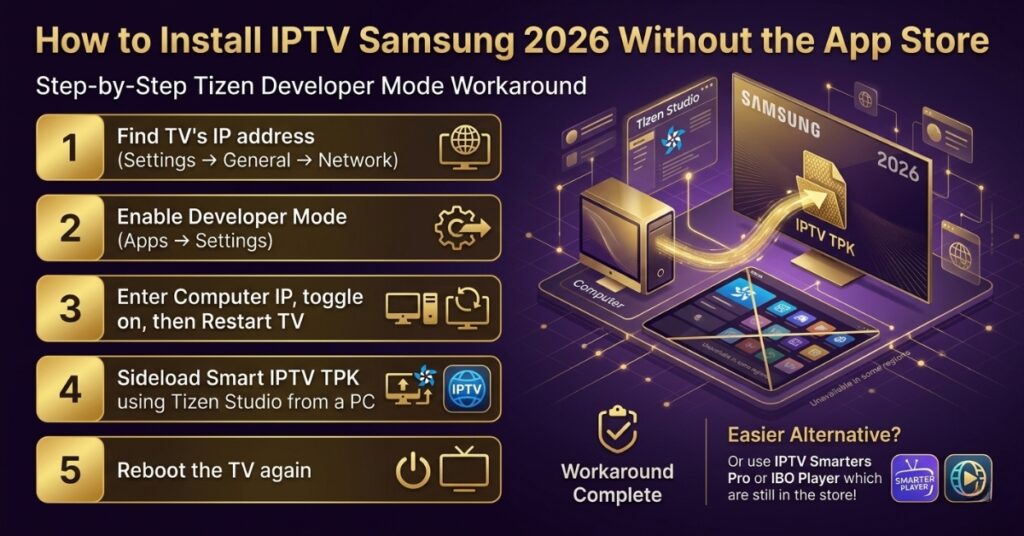
How to Install IPTV Samsung 2026 Without the App Store
If your Samsung App Store doesn’t list Smart IPTV which can happen on UK, EU and certain Middle East panels after Samsung’s regional store changes the app is still installable through Tizen developer mode. This route does need a PC on the same Wi-Fi network as the TV, plus around 15 minutes.
- Find your TV’s IP address under Settings → General → Network → Network Status and write it down.
- Go to Apps → Settings → Developer Mode on the TV remote.
- Toggle Developer Mode on, then enter the IP address of your computer when prompted.
- Restart the TV to apply the developer mode settings.
- On your PC, install Tizen Studio and load the Smart IPTV TPK file. Connect to the TV using the IP address from step 1, then sideload the TPK package.
- Reboot the TV again. Smart IPTV now appears in the apps drawer alongside everything else.
For most households, the easier path is to skip the sideload entirely and use IPTV Smarters Pro or IBO Player both remain available in the Samsung App Store across regions. The Strong 8K support team can confirm which app is currently supported on your specific Samsung model if you message them with the model number.
Activate Your Strong 8K Login on Samsung
After payment the support team sends your Xtream Codes credentials over email or WhatsApp. The fast activation usually arrives within minutes during normal hours.
You’ll receive three pieces.
- Username.
- Server URL.
- Password.
Plug them into your chosen IPTV app or paste the M3U URL if the app prefers playlist format. Instant activation kicks in the moment credentials register on the server and the stream typically lands within seconds noticeably faster than the channel-tuning delays cable subscribers are used to.
Test 4K Playback and Streaming Quality
Once the login goes through, run a quick three-stage quality check before settling in. Open a UK live channel first, switch to a 4K feed and watch around thirty seconds of fast motion — sport streams with camera pans are the cleanest stress test. The picture should stay sharp, with no compression artefacts on moving subjects.
Next, jump into the on-demand library and start a film. Smooth playback should begin within a few seconds, with no extended buffering at the front. If the picture looks softer than expected on a 4K Samsung panel, the fix usually sits inside the Picture Mode setting switching to Movie or Filmmaker mode and disabling motion smoothing (sometimes labelled Auto Motion Plus on Samsung) sharpens the image immediately.
Newer Samsung QLED and Neo QLED panels handle 8K UHD playback where the source supports it. For a deeper picture-quality breakdown across HD, and 8K on different panel tiers, the Strong 8K IPTV explainer on why 8K matters in 2026 covers how the streams scale across modern hardware.
Common Issues and Easy Fixes
Most install issues fix in under two minutes. Here’s the issue-to-fix mapping so you can scan straight to the row that matches the problem:
| Issue | Quick fix |
| Smart IPTV says “trial expired” after 7 days | Activate via siptv.app small one-time fee against your TV’s MAC address. |
| Login fails on first try | Recheck username and password casing both are case-sensitive. Copy directly from the support message instead of retyping. |
| Channels skip during peak hours | Switch from Wi-Fi to wired ethernet or move to the 5 GHz Wi-Fi band if ethernet isn’t an option. |
| EPG is empty on first launch | Wait ten minutes for the program guide to sync or force a refresh from the app’s settings menu. |
| Picture looks soft on a 4K Samsung panel | Force resolution to 4K UHD in Settings → Picture and switch Picture Mode to Movie or Filmmaker. |
| Buffer hits during a popular match | Restart the router and the TV. Persistent buffering usually means an upstream issue. |
| Smart IPTV app missing from Samsung Store | Either sideload via Tizen Developer Mode (Section 8) or switch to IPTV Smarters Pro / IBO Player. |
If buffering keeps coming back even after switching to wired ethernet, the Strong 8K IPTV buffering guide covers the deeper fixes DNS swaps, router-level QoS tweaks and ISP-specific workarounds. And if your local provider appears to be throttling streaming traffic, the dedicated ISP blocking write up explains where it actually happens and how to handle it.
Real Numbers Behind the Service
Every claim made about the service in this guide can be cross-checked against a public page on the official site:
| Metric | Value | Public source |
|---|---|---|
| Minimum Samsung model year | 2016 (Tizen 2.4+) | Tizen documentation |
| Supported Tizen versions | 2.4, 3.0, 4.0, 5.5, 6.0, 6.5, 7.0, 8.0 | Samsung Tizen specs |
| Compatible Samsung panel families | QLED, Crystal UHD, Neo QLED, Neo QLED 8K | Samsung product range |
| Native Tizen IPTV apps | IPTV Smarters Pro, Smart IPTV, IBO Player, SS IPTV | Samsung App Store |
| Recommended bandwidth | 30 Mbps wired | Buy Now FAQ |
| Install completion time | Under 10 minutes | This guide |
| Sideload workaround time | Around 15 minutes via Tizen Developer Mode | This guide |
| 8K UHD playback support | Neo QLED 8K panels only | Samsung product specs |
None of these figures sit behind a paywall or a marketing brochure. Each row maps to a section of the Strong 8K IPTV site any prospective buyer can read before they ever message support which keeps the entire pre-purchase decision on the buyer’s side.
Why Choose Strong 8K IPTV on Samsung
Several Strong 8K IPTV features reward Samsung Tizen users specifically beyond what a generic IPTV service can deliver on the platform:
- Native Tizen compatibility through IPTV Smarters Pro, Smart IPTV, IBO Player and SS IPTV no sideloading required for most installs.
- Stable 4K playback on every Samsung model from 2016 onwards, including QLED, Crystal UHD and Neo QLED panels.
- MAC pairing path through IBO Player when Smart IPTV is regionally unavailable covers UK and EU panels affected by Samsung’s store changes.
- Xtream Codes credentials and M3U URLs both supported the same login moves cleanly between IPTV apps if you switch later.
- Sideload route through Tizen Developer Mode documented and supported, so older Samsung households aren’t locked out.
- Replacement on broken logins handled as default policy important on Samsung because re-pairing a TV after a credentials change is slower than on Android.
- UK-based support team familiar with Samsung-specific quirks (Tizen version limits, regional store differences, MAC pairing flow).
The feature most Samsung households single out is the support response speed when something stalls mid-install. Being stuck on a missing-app message at 9pm on a Saturday is the kind of moment where a generic email ticket queue would burn the evening a WhatsApp reply inside ten minutes turns it into a footnote. The full Strong 8K IPTV review breaks down support response patterns, channel reliability, and picture quality across every device tier the service covers.
Benefits of Strong 8K on Samsung Smart TV
The setup pays off most for households whose main viewing screen is already a Samsung Smart TV:
- One Strong 8K login replaces cable, satellite and most sport add-ons across every Samsung TV in the home.
- Native Tizen experience no Firestick, no Android box, no MAG hardware sitting in the TV cabinet.
- Clean 4K streams across the Samsung QLED, Crystal UHD and Neo QLED ranges; 8K UHD support on Neo QLED 8K panels.
- EPG navigates quickly on the standard Samsung TV remote no separate keyboard needed for channel switching.
- Multi-device flexibility the same login works on additional Samsung panels in other rooms, plus Galaxy phones and tablets as second screens, on double or triple plans.
- Same Xtream Codes login extends to LG WebOS Android TV, iOS, MAG and Formuler if the household has mixed hardware.
- Buffer-free playback during high-traffic windows Saturday Premier League slates, midweek Champions League, NFL Sunday windows provided your connection sits at 30 Mbps wired or better.
- VOD library north of 170,000 titles, browsable directly on the Samsung remote with film, series and documentary categories laid out for couch navigation.
Common Samsung Setup Patterns
A common Samsung install pattern looks like this in practice. A buyer picks up a one-month single-device plan on a Friday evening, installs IPTV Smarters Pro through the Samsung App Store on Saturday morning and is watching the 3pm Premier League kick-off in 4K with a working EPG by lunchtime. Total time from payment to first stream usually lands under fifteen minutes on a 2020-onwards Samsung.
On the rare occasion something does go sideways a credential typo, a buffered first stream or a brief Tizen permissions prompt the support team handles the swap or fix quickly through WhatsApp. Specific buyer names aren’t published here in line with privacy convention, but the recurring patterns in public IPTV forum reviews line up closely with the steps documented in this guide.
Where to Buy and Who to Message
If this is your first install on a Samsung Smart TV, the simplest starting point is the Strong 8K IPTV plans page pick the duration and device tier that matches your viewing habits. The support team handles every step after that, from order confirmation through to the Xtream Codes credentials that drop straight into your Tizen IPTV app.
- WhatsApp: +44 7490 360062
- Telegram: t.me/IPTV_Fire_stick4K
- Email: 8kiptvofficial@gmail.com
Setting up a non-Samsung device alongside? The full Strong 8K IPTV installation walk through covers LG WebOS Android TV, Google TV, iOS, MAG, Formuler and Firestick step by step. Want to confirm specific channels are in the lineup before paying? The complete channel list breaks the catalogue down country by country.
That covers the cleanest Samsung Smart TV install path end to end. Pick the Tizen app that matches your subscription type, enter the Xtream Codes login the team sent through and live streams play within seconds. The same loop works on every Samsung TV from 2016 onwards across QLED, Crystal UHD, and Neo QLED ranges the install path stays identical across model years.
Frequently Asked Questions
Does Strong 8K IPTV work on all Samsung Smart TVs?
Strong 8K IPTV runs natively on Samsung Smart TVs from 2016 onwards with Tizen 2.4 or higher which covers the vast majority of UK Samsung panels in active use. Pre 2016 models (J series and earlier) may hit Tizen version limits where IPTV apps refuse to install, and a sideload workaround through Tizen Developer Mode covers most older cases.
Which IPTV app is best for Samsung Smart TV in 2026?
For first-time installers the safest pick is IPTV Smarters Pro the layout is forgiving on a TV remote and Xtream Codes login takes seconds. Smart IPTV remains the longest running Tizen native option for M3U playlists. IBO Player handles MAC based pairing when the other two are unavailable in your region’s Samsung App Store.
How do I install Smart IPTV if it’s missing from the Samsung App Store?
Samsung pulled Smart IPTV from the app store in several UK and EU regions during 2024-2025. The workaround uses Tizen Developer Mode enable it under Apps → Settings on the TV, install Tizen Studio on a PC, load the Smart IPTV TPK file and sideload it to the TV using its IP address. The full sideload route takes around 15 minutes and needs a PC on the same WiFi network.
Can I use Strong 8K IPTV on Samsung TV without a Firestick?
Yes. The entire purpose of installing a native Tizen app like IPTV Smarters Pro or Smart IPTV is to skip the Firestick and let the Samsung TV handle the IPTV stream directly. No external hardware, no extra HDMI cables no second remote just the Samsung’s own remote running the IPTV app through Tizen.
Does Strong 8K IPTV stream in 4K on Samsung QLED?
Yes. Strong 8K IPTV streams natively in 4K on every Samsung QLED, Crystal UHD and Neo QLED panel from 2016 onwards. The 8K UHD streams only render at native resolution on Neo QLED 8K panels other 4K Samsung TVs receive a high quality downscale. Picture Mode set to Movie or Filmmaker delivers the cleanest 4K picture on Tizen.
What if Strong 8K IPTV picture looks soft on my Samsung 4K TV?
Soft picture usually traces to two settings. Force the Picture Mode to Movie or Filmmaker (Settings → Picture → Picture Mode) and turn off Auto Motion Plus both default to settings tuned for daytime broadcast rather than 4K IPTV streams. The image sharpens immediately once those two changes apply.
How long does Strong 8K IPTV activation take on Samsung TV?
Activation arrives within minutes of payment confirmation. The UK support team sends Xtream Codes credentials (username, server URL, password) via WhatsApp or email these plug directly into your chosen Tizen IPTV app and live channels start streaming within seconds of the first login.
Can I use IBO Player on Samsung Smart TV with Strong 8K?
Yes. IBO Player and IBO Pro Player both install through the Samsung App Store and pair to Strong 8K’s backend using MAC pairing rather than Xtream Codes. Note your TV’s MAC address from the IBO Player home screen, send it to the Strong 8K support team via WhatsApp, and pairing completes server side within minutes.
Does Strong 8K IPTV work on older Samsung TVs from 2014 or 2015?
Pre-2016 Samsung panels with Tizen versions below 2.4 sometimes hit compatibility limits with modern IPTV apps. The realistic options for these older TVs are sideloading Smart IPTV through Tizen Developer Mode, or pairing the TV with a £30 Firestick to run IPTV Smarters Pro from there instead. The Strong 8K support team can confirm compatibility by Samsung model number.
Do I need a VPN to stream Strong 8K IPTV on Samsung?
A VPN is optional, not required. Most UK broadband connections stream Strong 8K natively on Samsung Tizen without any VPN setup. If your ISP throttles live sport traffic during peak hours, a paid VPN with a London or Manchester endpoint can smooth playback but routing through a VPN on a Samsung TV requires either a router-level VPN setup or a dedicated VPN capable WiFi connection.